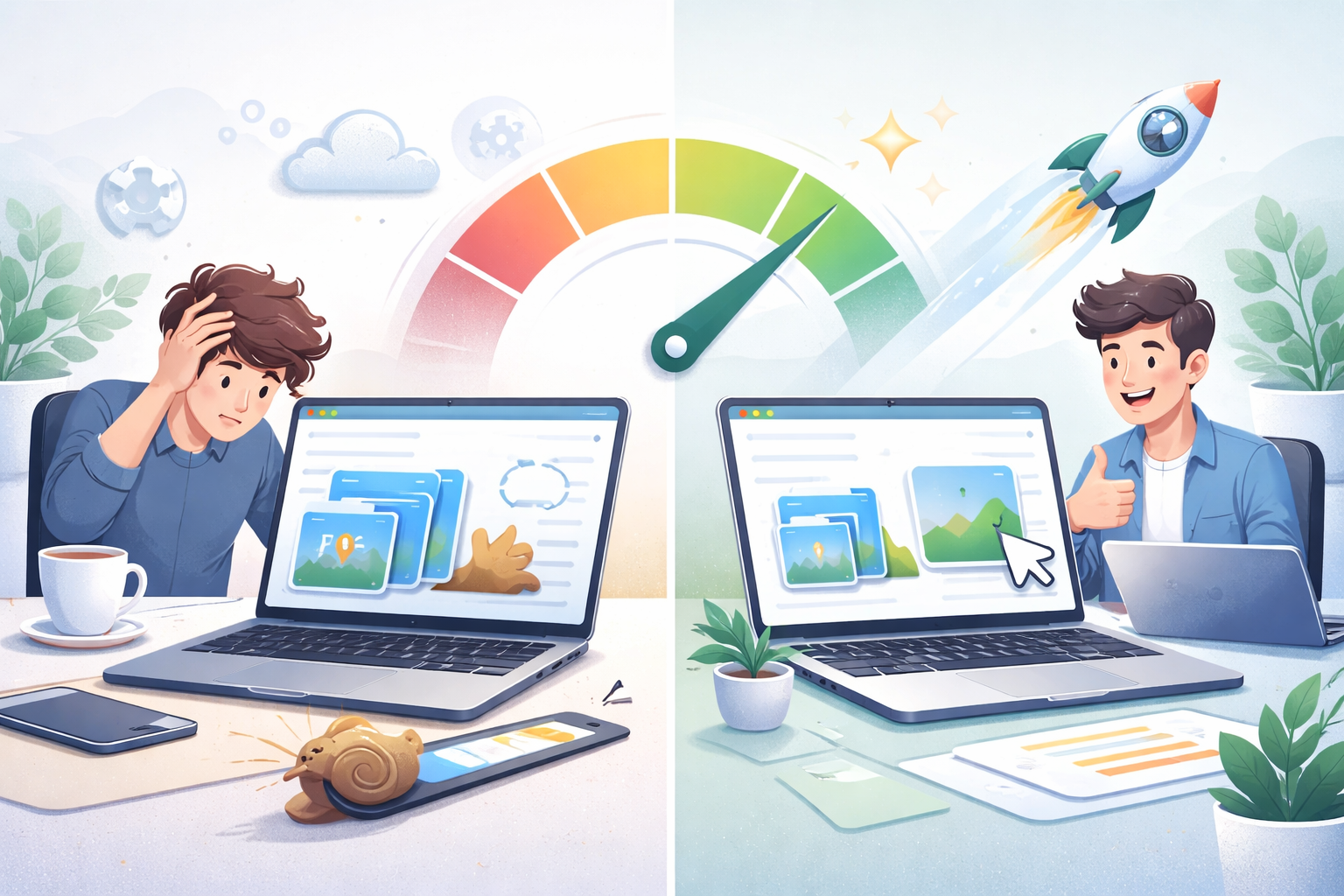
You have spent hours building your website. The design is beautiful, the content is useful, and the products are compelling. But when you open the site on your phone, it takes forever to load. You watch the spinner spin. The images appear one by one, slowly and painfully. Visitors are leaving before they even see what you offer.
Slow loading times are one of the biggest reasons people abandon websites. And the number one culprit? Images. Large, unoptimized images are the heaviest elements on most web pages. The good news is that learning how to optimize images for faster website loading is not difficult. This guide will walk you through everything you need to know about image optimization, from choosing the right format to implementing lazy loading. By the end, your site will load faster, rank higher, and keep visitors happy.
Why Image Optimization Matters for Page Speed
Images make up more than 50 percent of the average webpage’s file size. A single unoptimized photo can be 5MB or more. When a visitor loads your page, their browser has to download every image. The larger the files, the longer the wait. This is why image optimization is critical for page speed.
Here is what happens when your site loads slowly:
- Visitors leave. Studies show that 40 percent of people abandon a site that takes more than 3 seconds to load.
- Conversions drop. Every second of delay reduces conversion rates by up to 7 percent.
- SEO rankings suffer. Google uses page speed as a ranking factor for both desktop and mobile searches.
- User experience declines. Slow sites feel frustrating and unprofessional.
Optimizing your images is one of the highest-impact changes you can make to improve page speed. It requires no coding knowledge and delivers immediate results.
What People Use Image Optimization For
Here are some real ways people optimize images for faster loading.
E-commerce Websites
An online store has hundreds of product photos. Each image is 2-3MB. The site takes 5 seconds to load. After compressing all product images and implementing lazy loading, the site loads in under 2 seconds. Sales increase by 15 percent.
Blogs and Content Sites
A food blogger posts high-resolution photos of recipes. The images are beautiful but massive. Readers leave because the page takes too long to load. The blogger resizes and compresses all images, then enables lazy loading. Page views increase and bounce rates drop.
Portfolio Websites
A photographer’s portfolio site showcases large, high-quality images. The site is painfully slow. Potential clients click away before seeing the work. The photographer learns about image optimization, converts images to WebP format, and implements responsive images. The site becomes fast and professional.
Business Landing Pages
A company launches a marketing campaign with a landing page. The page includes several hero images. Load times are high, and conversion rates are low. The marketing team optimizes all images and reduces file sizes by 70 percent. The page loads faster, and conversions improve.
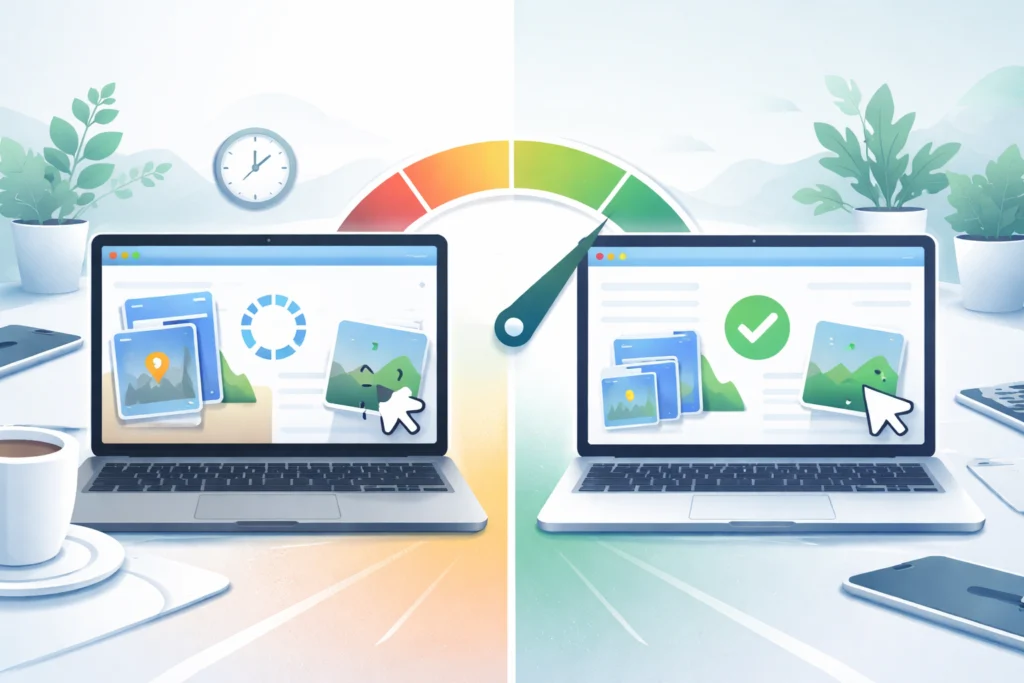
How to Optimize Images for Faster Loading: Step-by-Step
Here are the essential techniques for image optimization. Apply them all for the best results.
1. Choose the Right File Format
The format you choose has a huge impact on file size. Here is a quick guide:
- JPG/JPEG: Best for photographs and complex images. Use lossy compression for smaller files.
- PNG: Best for images with text, logos, or transparency. Larger file sizes but lossless quality.
- WebP: Modern format that offers smaller file sizes than JPG and PNG. Supported by all modern browsers.
- SVG: Best for logos and icons that need to scale. Vector format with tiny file sizes.
For most web images, WebP offers the best balance of quality and file size. If you need broad compatibility, JPG is the safe choice.
2. Compress Images Before Uploading
Compression reduces file size by removing unnecessary data. Here is how to compress images for web use:
- Open your preferred compression tool. Look for one that processes images locally for privacy.
- Upload your image.
- Adjust the quality setting. For web images, 80-85 percent is usually sufficient.
- Check the new file size. Aim for under 200-300KB for most web images.
- Download your compressed image and upload it to your site.
Pro tip: Compress images before uploading to your website, not after. Many content management systems do not compress images automatically.
3. Resize Images to the Correct Dimensions
Uploading a 4000 x 3000 pixel image when your website only displays it at 800 x 600 pixels wastes bandwidth. Always resize images to the dimensions they will be displayed at.
- Check the display size of the image on your website using browser developer tools.
- Resize your image to match that size (or slightly larger for retina displays).
- Save the resized version and upload it to your site.
Example: If your blog post displays images at 800 pixels wide, resize your image to 800 pixels wide. Do not upload a 4000 pixel image and let the browser shrink it.
4. Enable Lazy Loading
Lazy loading delays the loading of images until they are about to appear on the screen. This means images at the bottom of the page do not load until the user scrolls down. This dramatically improves initial page load time.
Most modern browsers support native lazy loading. Simply add the attribute loading="lazy" to your image tags. For example: <img src="image.jpg" loading="lazy" alt="description">
If you use WordPress, many themes and plugins enable lazy loading automatically.
5. Use Responsive Images
Responsive images deliver different image sizes based on the user’s screen size. A mobile user does not need the same large image as a desktop user. Use the srcset attribute to specify multiple image sizes.
<img src="image-small.jpg"
     srcset="image-small.jpg 400w,
             image-medium.jpg 800w,
             image-large.jpg 1200w"
     sizes="(max-width: 600px) 400px,
            (max-width: 1200px) 800px,
            1200px"
     alt="description">
This tells the browser to choose the most appropriate image size for the user’s device.
6. Serve Images in Next-Gen Formats
Modern formats like WebP and AVIF offer better compression than JPG and PNG. If your server and browser support these formats, use them. You can serve WebP images to browsers that support them and fall back to JPG for older browsers.
7. Use a Content Delivery Network (CDN)
A CDN stores copies of your images on servers around the world. When a user visits your site, images are delivered from the server closest to them. This reduces loading time significantly, especially for international visitors.
8. Remove Metadata from Images
Images often contain metadata like camera settings, GPS coordinates, and dates. This data increases file size without adding any value to the viewer. Use a tool to strip metadata during compression.
Common Image Optimization Mistakes to Avoid
Avoid these common pitfalls to get the best results.
Mistake 1: Uploading Images at Full Resolution
Uploading a 20MB image directly from your camera is the fastest way to kill your page speed. Always resize and compress before uploading.
Mistake 2: Using the Wrong Format
Using PNG for photographs creates unnecessarily large files. Using JPG for logos causes blurry edges. Choose the right format for each image type.
Mistake 3: Forgetting to Enable Caching
Browser caching stores images on the user’s device after the first visit. This means returning visitors do not need to download the same images again. Configure your server to set appropriate cache headers.
Mistake 4: Over-Compressing Images
Too much compression creates visible artifacts and blurry details. Always check the compressed image before uploading. Find the balance between file size and quality.
Mistake 5: Ignoring Mobile Users
Mobile users often have slower connections than desktop users. Optimize images for mobile by using responsive images and smaller file sizes.
Best Practices for Image Optimization
Follow these best practices to ensure your images load quickly without sacrificing quality.
Always Compress Before Uploading
Do not rely on your content management system to compress images. Most do not. Compress images on your computer before uploading them.
Use Descriptive File Names
Name your image files descriptively before uploading. Use hyphens to separate words. For example, “red-leather-shoes.jpg” instead of “IMG_1234.jpg”. This helps with SEO.
Add Alt Text to All Images
Alt text describes the image for screen readers and search engines. It also helps if the image fails to load. Always include alt text.
Test Your Page Speed Regularly
Use tools like Google PageSpeed Insights or GTmetrix to test your site’s loading time. These tools provide specific recommendations for image optimization.
Monitor Your Largest Contentful Paint (LCP)
LCP measures how long it takes for the main content of your page to load. Large hero images are often the culprit. Optimize your hero images to improve LCP.
Tools to Help You Optimize Images
Here are some tools that make image optimization easier.
Image Compression Tools
- Online compressors that process images locally in your browser
- Desktop software like GIMP for advanced control
- Command line tools like ImageMagick for batch processing
Image Resizing Tools
- Built-in tools in Windows and Mac
- Online resizers that maintain aspect ratio
- Batch resizing tools for multiple files
Format Conversion Tools
- Convert JPG to WebP for smaller file sizes
- Convert PNG to WebP when transparency is not needed
- Batch converters for multiple formats
Measuring Your Results
After optimizing your images, measure the impact. Here is what to check.
Page Load Time
Use tools like Google PageSpeed Insights to measure your before and after load times. Aim for a score of 90 or above.
Total Page Size
Check the total size of your page including all images. A well-optimized page should be under 2-3MB total.
Largest Contentful Paint (LCP)
LCP should be under 2.5 seconds for a good user experience. Optimized images help achieve this.
Bounce Rate
Monitor your bounce rate in Google Analytics. Faster pages typically have lower bounce rates and higher engagement.
Security and Privacy Considerations
When using online image optimization tools, your privacy matters. Here is what to look for.
Client-Side Processing Is Safer
The best online image tools process your images locally in your browser. Nothing is uploaded to any server. This is essential for sensitive images.
Avoid Tools That Require Accounts
If an image tool asks you to create an account, be cautious. Legitimate tools do not need your personal information.
Check for HTTPS Encryption
Look for the padlock icon in your browser’s address bar. This ensures that any data transmitted is encrypted.
Frequently Asked Questions
1. What is the best image format for web speed?
WebP offers the best balance of quality and file size for most web images. It is supported by all modern browsers and typically produces files 25-35 percent smaller than JPG.
2. How much can I compress an image without losing quality?
For JPG images, quality settings of 80-85 percent usually produce files 50-70 percent smaller with no visible quality loss. For PNG images, conversion to WebP often reduces file size significantly.
3. Does lazy loading really help page speed?
Yes. Lazy loading prevents off-screen images from loading immediately, which dramatically improves initial page load time. This is especially helpful for pages with many images.
4. What is the ideal file size for web images?
For most web images, aim for under 200-300KB. Hero images can be larger (500KB-1MB) but should be optimized. Thumbnails should be under 50KB.
5. How do I optimize images for mobile devices?
Use responsive images with the srcset attribute to deliver smaller images to mobile devices. Also, compress images more aggressively for mobile users.
6. Does image optimization affect SEO?
Yes. Page speed is a ranking factor. Faster loading pages rank higher in search results. Additionally, properly named and described images improve image search rankings.
7. What is the difference between compression and resizing?
Compression reduces file size by removing data. Resizing changes the dimensions of the image. For best results, resize first, then compress.
8. Can I optimize images after they are already on my website?
Yes. You can download existing images, optimize them, and re-upload them. Many content management systems also have plugins that can optimize images already on your site.
9. How often should I check my page speed?
Check your page speed monthly, or whenever you add new images to your site. Regular monitoring helps catch issues before they affect visitors.
10. What is the fastest way to optimize many images at once?
Use a batch processing tool. Many online compressors and desktop applications allow you to upload and optimize multiple images at the same time.
Conclusion: Optimize Images for a Faster, Better Website
Image optimization is one of the most effective ways to improve your website’s loading speed. It requires no coding knowledge, costs nothing to implement, and delivers immediate results. By choosing the right format, compressing files, resizing to correct dimensions, and enabling lazy loading, you can dramatically reduce page load times.
Start by auditing your current images. Identify the largest files and optimize them first. Then implement lazy loading and responsive images. Test your page speed before and after to see the improvement. Every second you shave off your loading time will reduce bounce rates, improve conversions, and make your visitors happier.
The next time you upload an image to your website, remember these techniques. A few extra minutes of optimization can save your visitors seconds of waiting. And in the world of web performance, every second counts.